
Claude Code for Non-Technical People: Quickstart Guide
Start vibecoding with Claude in < 30 minutes

Over the past year, I’ve traveled deep down the vibecoding rabbit hole & documented my journey. Dozens of friends & former colleagues have reached out with the same feedback: “I keep hearing about how Claude Code and vibecoding. But how do I actually get started?”
It’s a fair question. Setting up a coding environment from scratch can feel intimidating if you’ve never written code before. The goods news is, it’s way more accessible than you think. If you’re reading this right now, I’m confident you can have Claude Code writing code for you in under an hour.
I’ve run several friends through 1:1 setup sessions and recently hosted my first vibe coding crash course. Based on these experiences, I put together a guide to walk you through the entire setup: what to install, why you need it, and how to get everything running smoothly.
By the end, you’ll have a working development environment and will be ready to start building.
Bonus: I’ve created a shell script (a package of code you can run from your terminal) that automates the entire setup process for Mac users. You can run a single command and have everything installed in just a few minutes. I’ll share this script with subscribers in a follow-up post.
However, I encourage you to complete these steps manually as a learning exercise. Understanding what you’re installing and why gives you a foundation that will pay dividends as you start building.
Additionally, one of the biggest benefits of vibecoding is that you are subconsciously learning to code in the process. Take every shortcut and you’ll quickly hit a wall when you start building real projects. Learn the basics and you’ll move much faster long-term. So let’s dive in!
The Vibecoding Tech Stack
The most popular (and most documented) vibecoding tech stack today consists of these tools:
A code editor (VS Code): where you’ll see and manage your files
A JavaScript runtime (Node.js) & package manager configuration (npm): teaches your computer to understand (and run!) JavaScript, the default language for web applications
Version control (Git): tracks changes and syncs your code to the cloud via Github
Claude Code: a ‘harness’ for Anthropic’s AI models that turns Claude into a coding machine
Vibecoding SaaS App Stack: accounts for Claude Pro, GitHub, Vercel, and Supabase. We’ll talk more about each of these below
Step 0: Terminology Crash Course
Before we start installing, we need to cover a couple key concepts.
Development Environment
When you use an app on your phone or a website in your browser, you’re interacting with software that runs on someone else’s computer (a server). When you build software, you need a similar setup on your own machine - a place where software can run, where you can test things, where you can break stuff without consequences.
Your local (development) environment is that setup. It’s a collection of tools that let you write code, run it, track changes, and eventually deploy it to the internet.
Terminal
If you’ve never used a terminal before, this might feel unfamiliar. The terminal is just a text-based way to talk to your computer. Instead of clicking on folders and icons, you type commands.
If you follow this tutorial, you’ll interact with the terminal primarily through a window in VS Code. You can also launch a standalone terminal by bringing up Spotlight Search (cmd + space on Mac, Windows key + S on PC) and typing in ‘Terminal’.
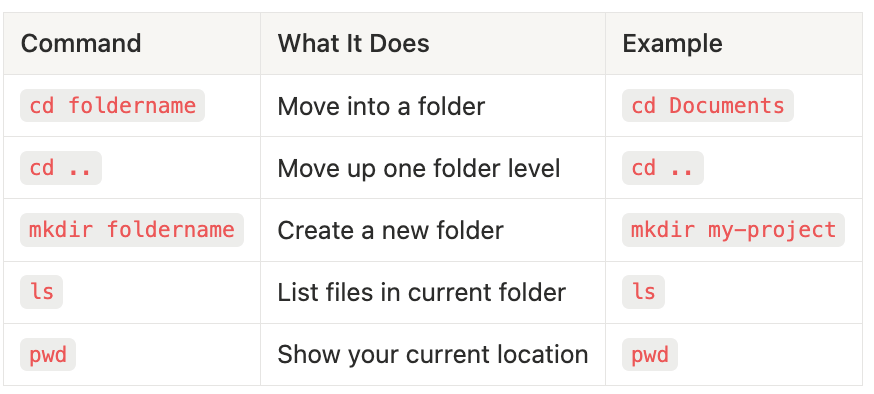
If the base terminal view looks like something out of the 80’s, that’s because it is! It can be a bit intimidating, but you only need to know a handful of commands to get started:
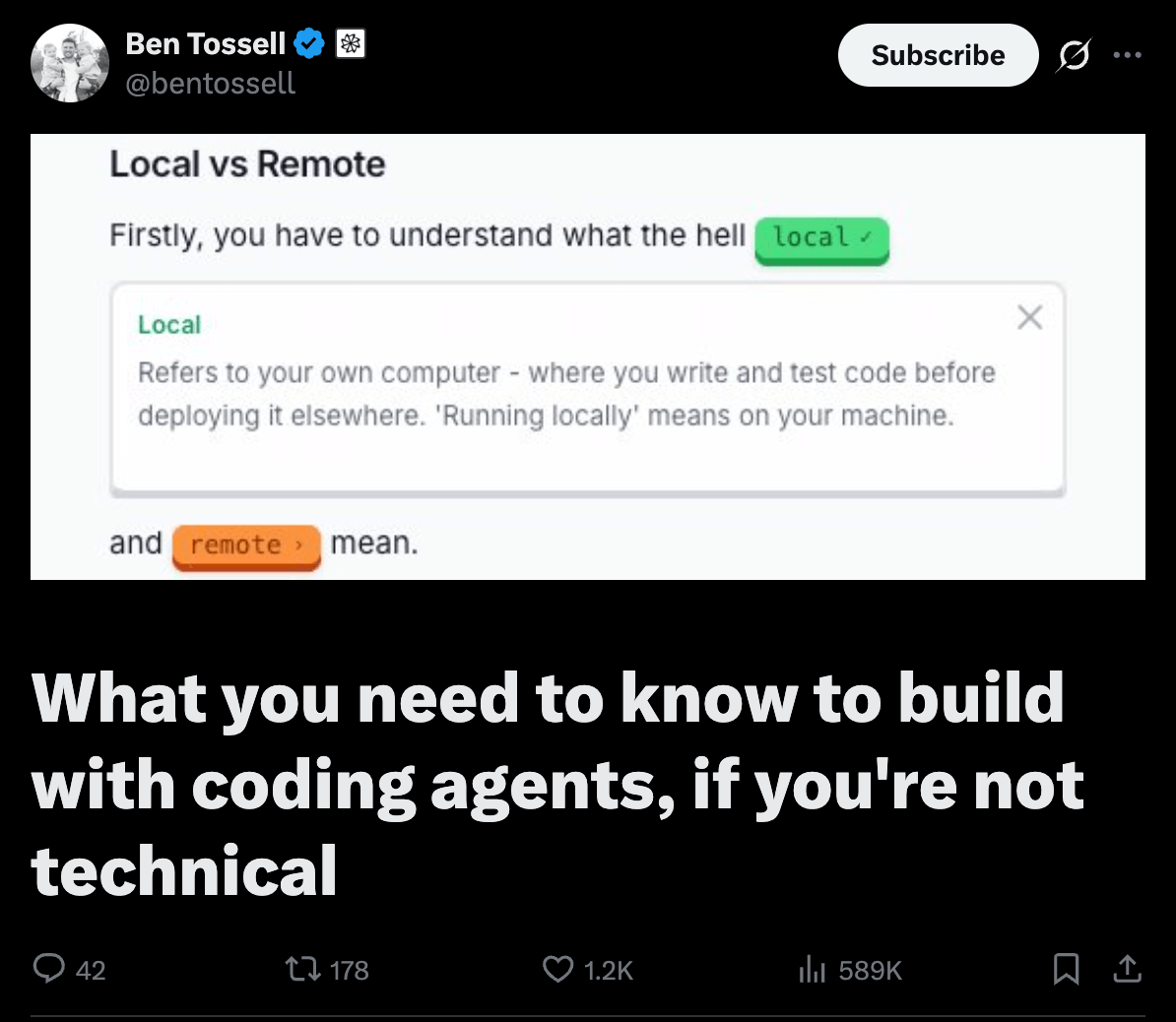
Ben Tossell, one of the leading non-technical vibecoders, posted a comprehensive breakdown on X defining more terms that will be helpful for you to understand eventually. I highly recommend giving it a read before you start building your first project.
Step 1: Install VS Code
What it is: A text editor designed for code. Think Microsoft Word, but for programming. This is where you’ll see your project files and interact with Claude Code.
Why you need it: Technically, you could write code in any text editor. But VS Code has a built-in terminal (command line) and thousands of helpful extensions that make your life way easier. It’s free, made by Microsoft, and it’s what most developers use.
Installation:
Go to code.visualstudio.com
Click the download button (it detects your operating system automatically)
Run the installer
Mac: Drag the app to your Applications folder
Windows: Run the .exe file and accept the defaults. If you see an option to “Add to PATH,” check it.
Verify it worked: Open VS Code. You should see a welcome screen with some getting-started options.
Step 2: Install Node.js
What it is: Your computer doesn’t natively understand JavaScript, the language that powers most web applications. Node.js is a “runtime” program that teaches your computer how to read & execute JavaScript code.
Why you need it: Easy analogy: you need Word to open/edit a .docx file → you need Node.js to run Javascript. Almost every modern web development tool is built with JavaScript and distributed through npm (Node Package Manager).
Installation:
Go to nodejs.org
Download the LTS version (the one labeled “Recommended for Most Users”)
Run the installer and accept all the defaults
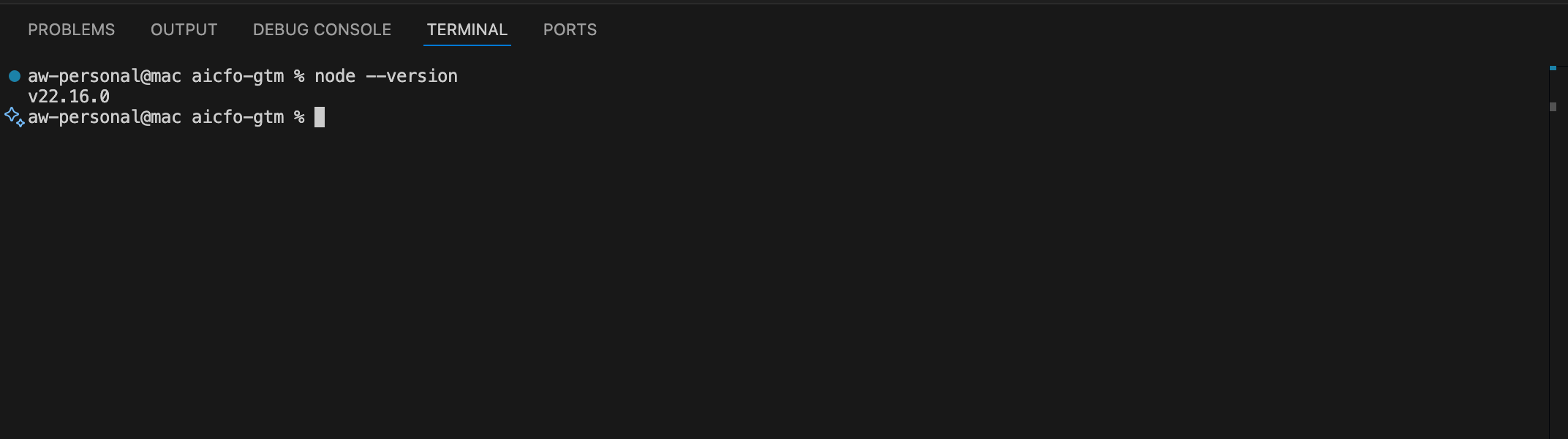
Verify it worked:
Open VS Code
Open the terminal inside VS Code: View → Terminal (or press
Ctrl+\\ on Windows,Cmd+`` on Mac)Type
node --versionand press Enter
You should see a version number like v24.13.0 (the current version). The exact number doesn’t matter—what matters is that it shows something instead of an error.
Step 3: Install Git
What it is: Git is version control software which means it tracks every change you make to your code. Made a mistake? You can undo it. Want to save your work to the cloud? Git syncs with GitHub to back everything up.
Why you need it:
You (and Claude Code) can use Git to understand your project’s version history, allowing for rewinding to previous versions
When you’re ready to deploy your app to the internet, services like Vercel pull your code from GitHub, which runs on top of Git.
Git/GitHub allows you to share your codebase with other collaborators.
Installation:
Mac: Open the terminal in VS Code and type
git --version. If Git isn’t installed, your Mac will prompt you to install the Command Line Developer Tools. Click “Install” and wait a few minutes.Windows: Go to git-scm.com, download the installer, and run it. Accept all the defaults.
Verify it worked: In VS Code’s terminal, type git --version. You should see a version number.
Step 4: Install Claude Code
What it is: Claude Code is an AI coding assistant that runs in your terminal. You tell it what you want to build, and it writes, edits, and runs the code for you. It’s made by Anthropic (the same company behind Claude).
Why you need it: This is the whole point! Claude Code is what makes vibecoding possible.
Installation (Native Installer — Recommended):
Anthropic offers a native installer that’s simpler and more reliable than the old npm method. It doesn’t require Node.js and auto-updates in the background.
Open VS Code’s terminal
Run this command:
Mac/Linux:
curl -fsSL <https://claude.ai/install.sh> | shWindows PowerShell:
irm <https://claude.ai/install.ps1> | iexOnce it finishes, type
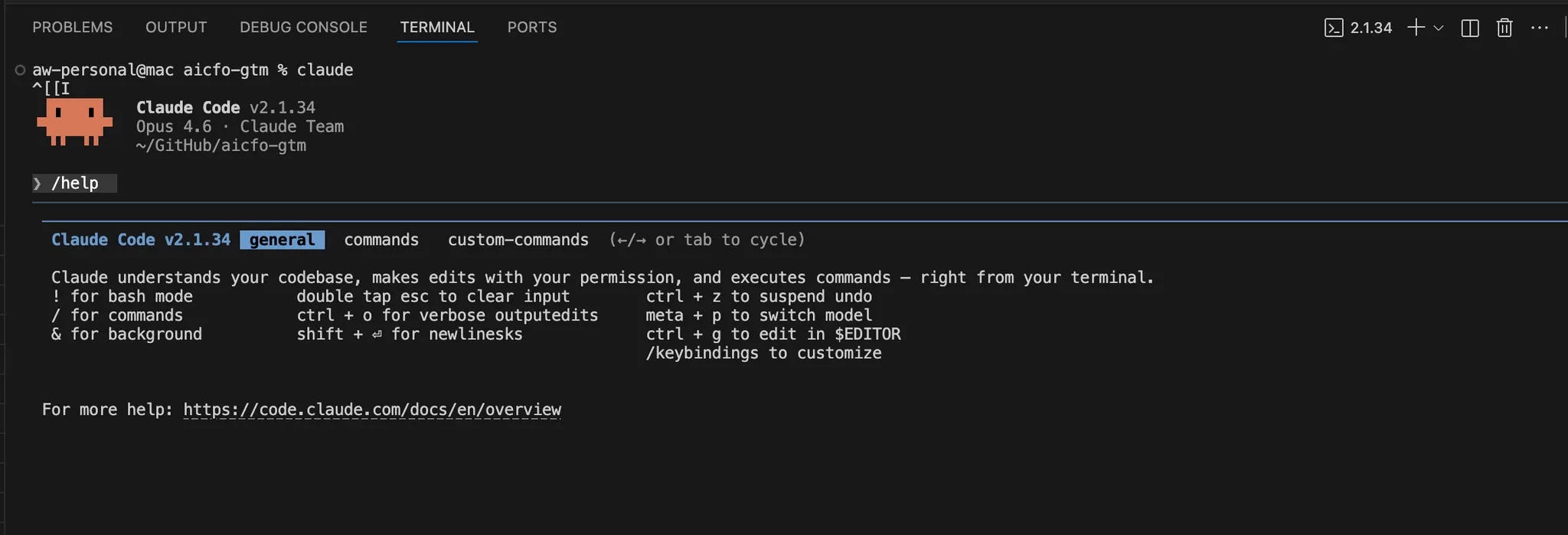
claudeto start Claude CodeFollow the prompts to authenticate with your Anthropic account
Verify it worked: Type claude in the terminal. You should see Claude Code start up and greet you.
Alternative: Install via Homebrew (Mac only)
If you prefer using Homebrew:
brew install --cask claude-codeNote: Homebrew installations don’t auto-update. You’ll need to run brew upgrade claude-code periodically to get new features and security fixes.
If you get “command not found” after a successful install: Close your terminal in VS Code and reopen it to reload your PATH. On Mac, you may also need to open a new terminal window or run source ~/.zshrc.
Step 5: Create Your Accounts
Now that Claude Code is installed, you’ll need accounts on a few services before you can actually build and deploy applications.
Anthropic (the company behind Claude Code)
Claude Code requires either a Claude Pro subscription ($20/month) or API credits. If you’re already a Claude Pro subscriber, you’re set. If not, sign up at console.anthropic.com.
A note on costs: Claude Code lets you choose which AI model to use. Sonnet is the default and the best balance of capability, speed and cost for most tasks. Opus is more powerful but costs 3x more. A good rule of thumb as of 1/2026: Opus for planning and Sonnet for execution
GitHub
What it is: GitHub is where your code lives in the cloud. It’s like Google Drive for code. Sign up at github.com & store your username/password for the next phase of setup.
Why it’s required: You’ll deploy your application to the internet by updating the ‘source of truth’ code in your GitHub repository, which will trigger deployments to your production server on Vercel, and your production Supabase database (see below).
Vercel
What it is: Vercel is the service that hosts your app and gives it a URL. Sign up at vercel.com and use “Continue with GitHub” to connect your accounts.
Why it’s required: When you push code to GitHub, Vercel automatically deploys it to the internet.
Supabase (required for apps with databases)
What it is: Supabase is your database and also provides a basic user authentication platform. Sign up at supabase.com and use “Sign in with GitHub”.
Why it’s required: It’s where your app stores data, and has become a go-to tool in the vibecoder’s toolkit.
Setup Checklist
If you’ve followed along, you now have everything you need to start vibecoding:
VS Code for editing files
Node.js for running JavaScript
Git for version control
npm configured correctly
Claude Code installed and authenticated
Accounts on GitHub, Vercel, and Supabase
In the next guide, I’ll walk through the actual process of building your first application: from describing what you want to create, to generating product documentation, to deploying a live app on the internet.
Until then, open VS Code, type claude in the terminal, and say hello. You’re a vibecoder now.
